Search Campaigns
Written By Team AdKex
Last updated 8 months ago

Search Campaigns
Understanding Search Campaigns
Creating a New Search
To start a new campaign:
Click the + New Search button in the top-right corner.
Enter your campaign details (keywords, locations, etc.).
Launch the search.
Your campaign will appear in the list once it has been created.
Campaign Overview Statistics
At the top of the page, you’ll see a summary of your campaigns:
Total Campaigns
Displays the total number of campaigns you have created.
Active Campaigns
Shows how many campaigns are currently running.
Completed Campaigns
Indicates how many campaigns have finished processing.
These counters give you a quick overview of your activity.
Campaign List
Below the summary cards, you’ll find a searchable table containing all your campaigns.
Search Bar
Use the Search field to quickly find a specific campaign by name.
Understanding the Campaign Table
Each row in the table represents one campaign and includes the following columns:
Campaign Name
The name assigned to your campaign.
Keywords
The keywords used in the search.
If multiple keywords are included, the table will display “+X more.”
Locations
The geographic areas targeted in the campaign.
If multiple locations are included, the table will display “+X more.”
Results
Displays the number of results (advertisers and ad copies) found for the campaign.
Search Run Status
Shows the progress of the search run (running, completed, paused etc.). Also displays when the campaign was last run.
Status
Indicates the campaign’s current state:
Active
Completed
Actions
Click the three-dot menu (…) to access additional campaign options such as cancelling a search.
Refreshing Campaign Data
Use the refresh icon next to the New Search button to update the campaign list and retrieve the latest data.
Campaign Overview Tab
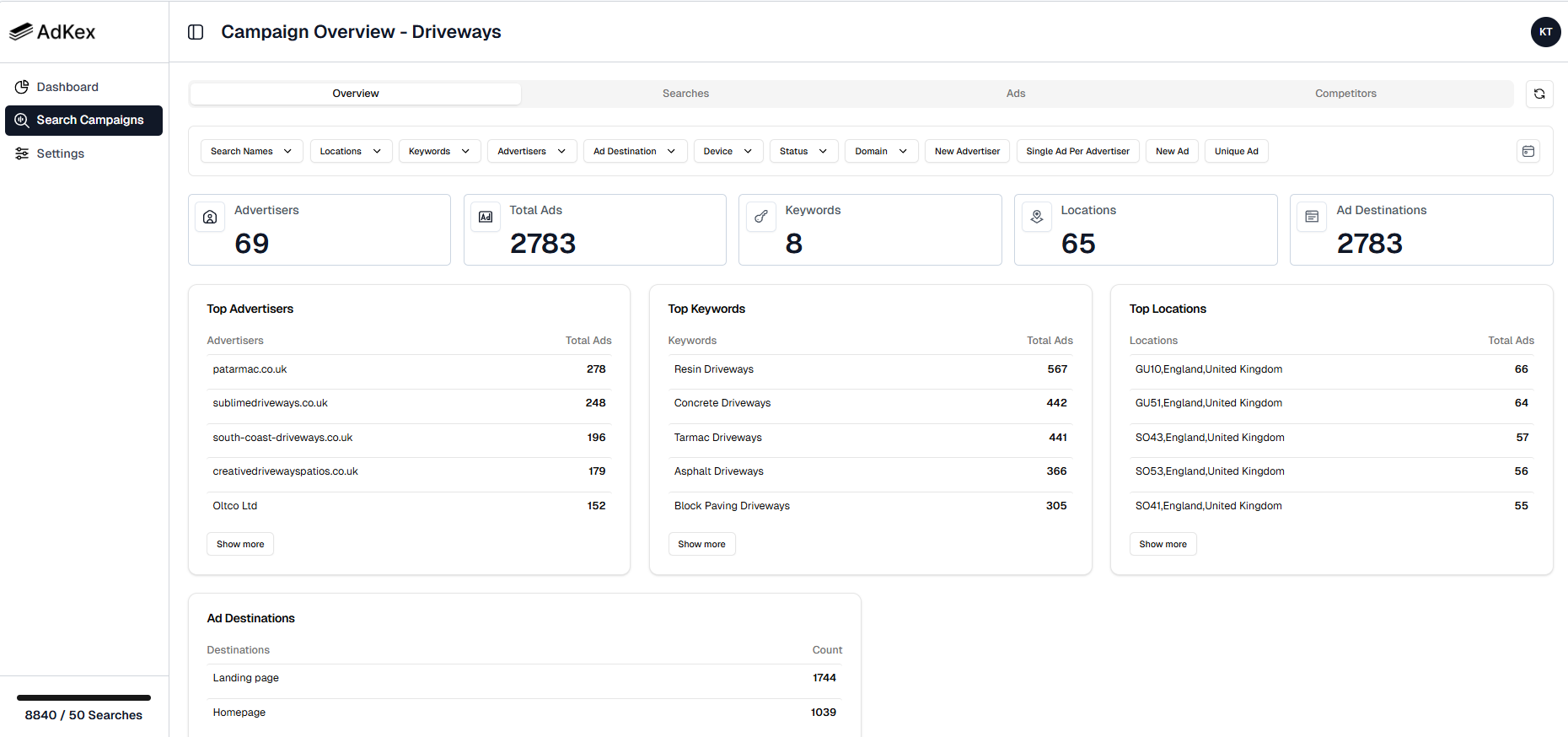
The Campaign Overview page provides a high-level summary of your campaign performance, including advertiser activity, keyword competition, and geographic insights.
Below is an example based on the Driveways campaign.
Summary Metrics
At the top of the page, you can see key campaign statistics:
Advertisers: 69
Total Ads: 2,783
Keywords: 8
Locations: 65 (Postcodes in Hampshire, UK)
Ad Destinations: 2,783
Top Advertisers
The Top Advertisers section ranks advertisers by total ads detected.
Example:
patarmac.co.uk – 278 ads
sublimedriveways.co.uk – 248 ads
south-coast-driveways.co.uk – 196 ads
creativedrivewayspatios.co.uk – 179 ads
Oltco Ltd – 152 ads
Top Keywords
The Top Keywords section shows which keywords generated the most ads.
Example:
Resin Driveways – 567 ads
Concrete Driveways – 442 ads
Tarmac Driveways – 441 ads
Asphalt Driveways – 366 ads
Block Paving Driveways – 305 ads
Top Locations
The Top Locations section highlights where advertiser activity is strongest.
Example:
GU10, England, United Kingdom – 66 ads
GU51, England, United Kingdom – 64 ads
SO43, England, United Kingdom – 57 ads
SO53, England, United Kingdom – 56 ads
SO41, England, United Kingdom – 55 ads
Ad Destinations
The Ad Destinations section shows where advertisers are sending traffic.
Example:
Landing Pages – 1,744
Homepage – 1,039
Searches Tab

The Searches tab provides a detailed breakdown of every individual search executed within the campaign.
Individual Search Overview
The table includes the following columns:
Name
The name of the search (e.g., Hampshire).
This helps you distinguish between different search runs within the same campaign.
Keyword
The exact search term that was used to perform the Google search.
Example:
Tarmac Driveways
This allows you to see how each keyword performed individually.
Location
The specific postcode, city, or region used in that search.
Example:
GU34, England, United Kingdom
Device
The device type used for the search.
Example:
Desktop
Domain
The Google search engine domain used during the search.
Example:
google.co.uk
Ads Found
The Ads Found column shows how many advertisers and ad copies were detected for that specific keyword–location combination.
Example for For the keyword “Tarmac Driveways”:
GU34 – 1 advertiser, 2 ad copies
GU35 – 4 advertisers, 6 ad copies
GU46 – 2 advertisers, 5 ad copies
Execution Date
The exact date and time the search was run.
Example:
Feb 28, 2026 – 9:48 PM
Status
Displays the search status.
Completed, Running or Failed for example.
.
Ads Tab
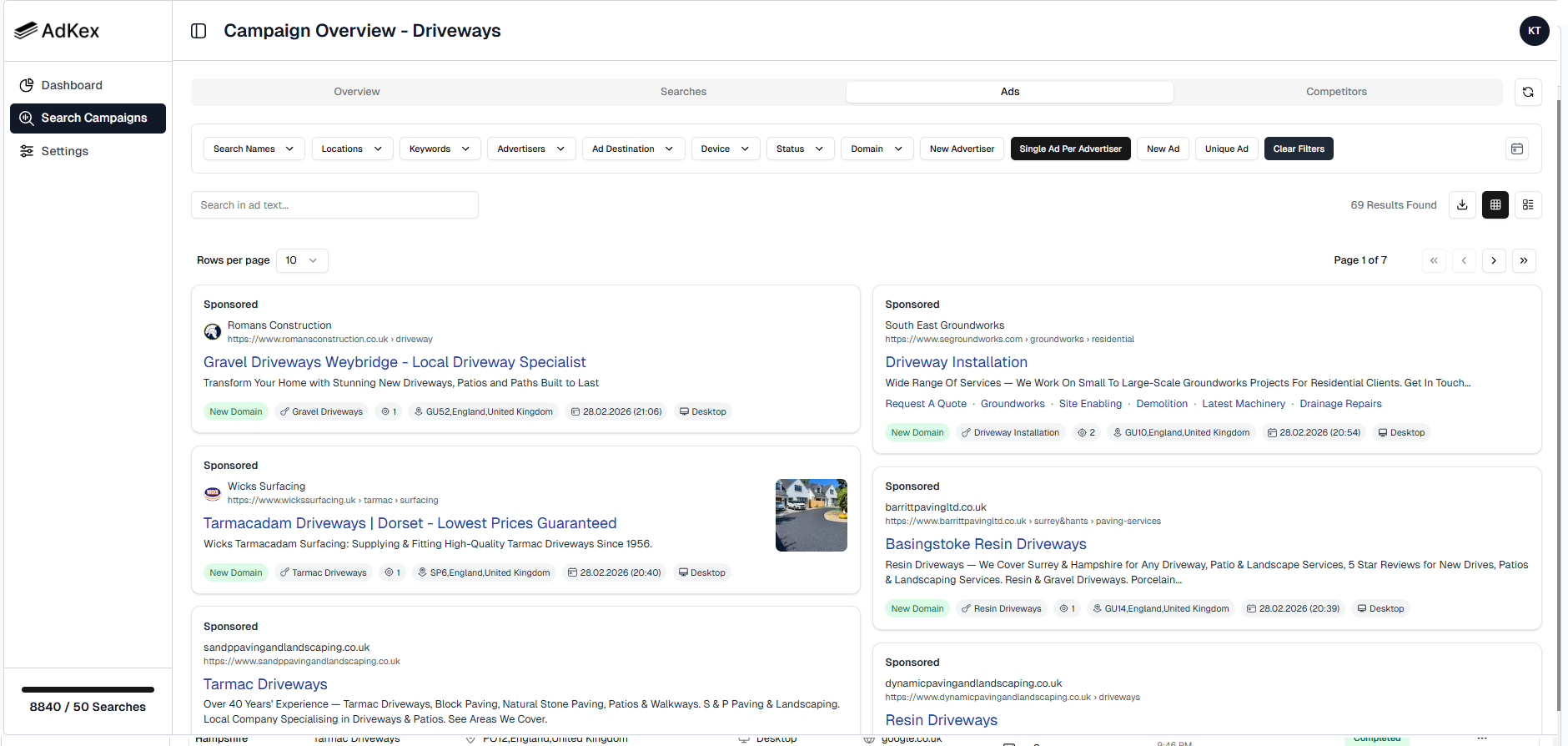
The Ads tab displays all collected Google Ads ad copies from your campaign.
Ad Card Breakdown
Each ad card contains the following elements:
Sponsored Label
Each entry is clearly marked as Sponsored, confirming it is a paid Google Search ad and not an organic result.
Advertiser Name & Domain
At the top of the card, you will see:
The Advertiser name
The display URL
This allows you to quickly identify which competitor is running the ad.
Example from the image:
Romans Construction
https://www.romansconstruction.co.uk › driveway
Ad Headline
The headline is the main clickable title of the ad. If a user clicks on the headline, they will be redirected to the destination URL that the advertiser has set for that specific ad copy.
Example:
Gravel Driveways Weybridge – Local Driveway Specialist
Ad Description
Below the headline is the ad description, which contains supporting messaging.
Example:
Transform Your Home with Stunning New Driveways, Patios and Paths Built to Last
Ad Assets (If Present)
If the advertiser uses image assets, callout extensions, sitelinks etc. they may appear alongside the ad.
For example:
Image Asset for Wicks Surfacing
Site links for South East Groundworks
Keyword Used
Each ad is tagged with the exact keyword that triggered the search.
Example:
“Gravel Driveways”
“Tarmac Driveways”
Location
Each card displays the postcode-level location where the search was performed.
Example:
GU52, England, United Kingdom
SP6, England, United Kingdom
Execution Date & Time
You can see the exact date and time the ad was captured.
Example:
28.02.2026 (21:06)
28.02.2026 (20:40)
Device
The device used during the search is displayed.
Example:
Desktop
New Domain Tag
Some ads are labelled New Domain.
This indicates that the advertiser’s domain was not previously detected in earlier search runs.
Filters & Controls
Search Names
Filter results by a specific search run within the campaign.
Useful when you have multiple searches in the campaign and want to check specific search run results.
Locations
Narrow results to a specific postcode, city, or region.
This helps you analyse advertiser activity in individual geographic areas.
Keywords
View data for a specific keyword only.
Ideal for identifying keyword generate the most ad copies.
Advertisers
Filter by a specific advertiser or domain.
This allows you to analyse a single competitor’s search ads activity.
Ad Destination
Filter by destination type (e.g., landing page vs homepage).
Helpful for understanding advertiser funnel strategies.
Device
Segment results by device type (e.g., Desktop or Mobile).
This allows you to compare how advertiser activity differs across devices.
Status
Filter by ad status.
Useful for identifying completed versus running ad runs.
Domain
Filter results based on the Google search engine domain where the search was performed-This allows you to analyse results from specific search environments.
New Advertiser
View advertisers that were not previously detected in earlier runs.
This helps you identify new competitors entering the market.
Single Ad Per Advertiser
Limits results to one ad per advertiser.
This is helpful for removing duplicates and simplifying competitor comparisons.
New Ad
Filter to display only newly detected ads.
Useful for tracking changes in ad messaging over time.
Unique Ad
Shows only unique ad variations, removing repeated versions.
This makes it easier to analyse creative differences without duplication.
Date Filter
Use the Date filter to select a specific day and view results collected on that date.
Click on the calendar icon and choose a date to filter the data accordingly. The results table will update to display only ads captured during the selected day.
Download Ads Results

You can export your results as a CSV file for further analysis or reporting.
To download your data:
Click the Download icon (CSV button) in the top-right corner of the page.
The system will generate a CSV file based on your current view and applied filters.
The file will download automatically to your device.
What Is Included in the CSV?
The exported file includes:
Title
Snippet
Link (Destination URL)
Displayed URL
Advertiser Name
Advertiser Domain
Position
Keyword
Location
Execution Date
Competitors Tab

The Competitors tab provides a consolidated view of all detected advertisers in your campaign.
Unlike the Ads tab (which shows individual ads), the Competitors tab groups data by advertiser domain, giving you a strategic overview of competitor activity and performance.
Advertiser Metrics
Each row represents one advertiser (domain) and includes the following metrics:
Competitors
The advertiser’s website domain.
Example:
patarmac.co.uk
Terrafirma Paving Ltd
http://cbrtesting.uk/
Keywords
The number of unique keywords where this advertiser appeared.
Example:
patarmac.co.uk appears on 3 keywords.
south-coast-driveways.co.uk appears on 7 keywords.
Locations
The number of locations (postcodes/regions) where the advertiser was detected.
Example:
patarmac.co.uk appears in 46 locations (postcodes).
south-coast-driveways.co.uk appears in 43 locations (postcodes).
Unique Ads
The number of unique ad copies detected for that advertiser.
Example:
patarmac.co.uk – 216 unique ads
south-coast-driveways.co.uk – 164 unique ads
Total Ads
The total number of ads detected (including repeated appearances across locations and runs).
Example:
patarmac.co.uk – 278 total ads
south-coast-driveways.co.uk – 196 total ads
Average Position
The average ad position across all detected appearances.
Example:
patarmac.co.uk – 1.88
southernscapes.co.uk – 1.71
dynamicpavingandlandscaping.co.uk – 3.33
Lower numbers indicate higher placement (closer to the top of search results).
This helps identify which competitors dominate top ad positions.
Average Extensions
The average number of ad extensions used.
Example:
sjdrivewaysandlandscapes.co.uk – 4.53
south-coast-driveways.co.uk – 4.30
Higher extension usage often indicates more advanced ad strategies.
Ad Destination
Indicates whether traffic is primarily directed to:
Homepage
Landing page
This helps you understand funnel strategy and conversion optimization level.
Download Competitor Data
You can export the competitor table as a CSV file for further analysis or reporting.
To download the data:
Click the Download (CSV) icon in the top-right corner of the Competitors tab.
The system will generate a CSV file based on your current view.
The file will automatically download to your device.
What’s Included in the Export?
The CSV file includes all visible competitor metrics, such as:
Competitor Name
Keywords
Locations
Unique Ads
Total Ads
Average Position
Average Extensions
Ad Destination
Was this helpful?
Still need help? Share an idea